
The Transactions Screen is the place on Messenger where you manage your employees Clocking Transactions.
In this screen you can:
- Search for an employee. (See Figure 1)
- Select the employee who’s Clocking Transactions you want to see. (See Figure 1)
- The details of the employee, including the current shift that the employee is on. (See Figure 1)
- Add a transaction for the selected employee. (See Figure 1)
- Delete the selected transactions. (See Figure 1)
- Bulk add transactions for multiple employees. (See Figure 1)
- Change the selected transaction from an IN transaction to an OUT transaction (or vice versa). (See Figure 1)
- Undelete the selected transaction. (See Figure 1)
- Show the deleted transactions in the workspace. (See Figure 1)
- Filter the transactions in the Workspace by the date range. (See Figure 1)
- View the transactions in this Workspace. (See Figure 1)
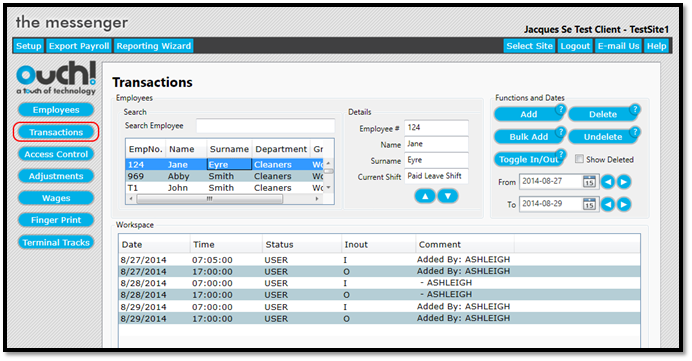
To access the Transactions screen simply click on the Transactions button on the left hand menu of Messenger. (See Figure 2)
Figure 1
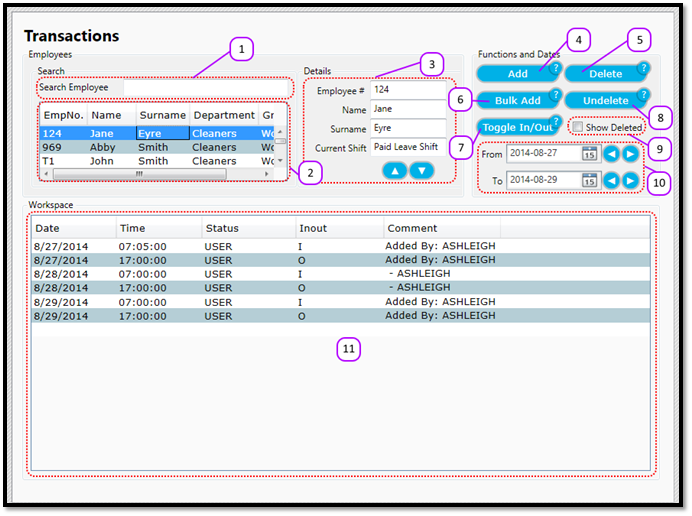
Figure 2
Comments
0 comments
Please sign in to leave a comment.