
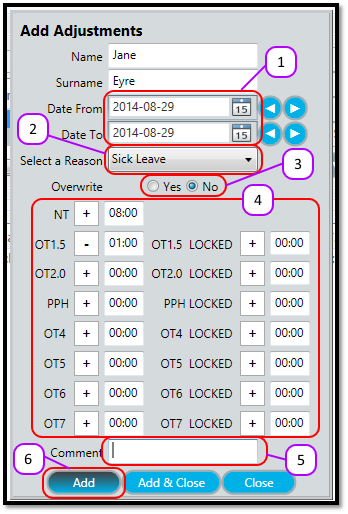
- Select the To and From dates for the adjustment. The Adjustment will be repeated from the first date until and including to second date. (See Figure 1)
- Select the Reason for the adjustment. Examples of reasons are “Sick Leave”, “Family Responsibility Leave” etc. (See Figure 1)
- If you click Yes on the overwrite option, then the clocking transactions made on the same day as the adjustment will be ignored when calculating the timesheet. If you click No on the overwrite option, then the adjustment will be added to or subtracted from the hours worked that day. (See Figure 1)
- Enter the amount of hours you want to adjust the employee’s time by. You can make negative adjustments (deduct hours) if you wish, by clicking on the + sign to change it to a – sign. You can enter an amount for each of the timesheet columns. (See Figure 1)
- Optional: You may enter a comment to be included with the adjustment here. (See Figure 1)
- Click the Add (See Figure 1)
Figure 1
Comments
0 comments
Please sign in to leave a comment.