
This screen is only visible if you have Access Control enabled for your site.
The Access Control Screen is the place on Messenger where you manage your employees Access Transactions. An Access transaction shows you who has clocked into or out of an area controlled by an Ouch! clock, these transactions do not affect the employees timesheet unless you have also marked Ouch! clock as both an Access Clock and Clockings Clock for the employee’s role.
In this screen you can:
- Search for an employee. (See Figure 1)
- Select the employee whose Access Transactions you want to see in the Workspace. (See Figure 1)
- See some of the details of the employee including the current role the employee is assigned to. (See Figure 1)
- Filter the Access Transactions by date. (See Figure 1)
- View the Access Transactions for the selection made above.
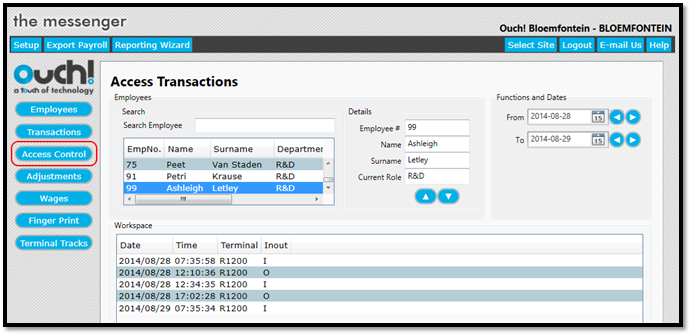
The Access Transactions screen is accessed by clicking on the Access Control button on the right hand side of the screen. (See Figure 2)
Figure 1
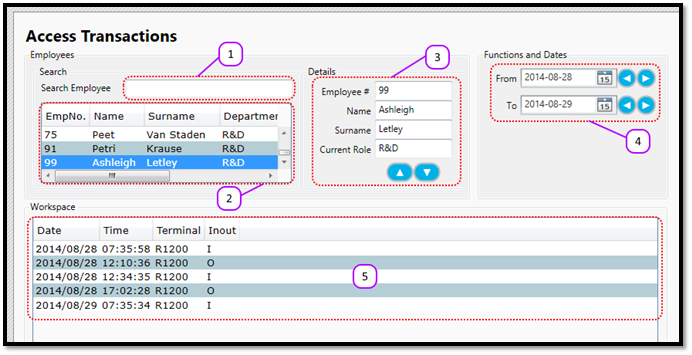
Figure 2
Comments
0 comments
Please sign in to leave a comment.