
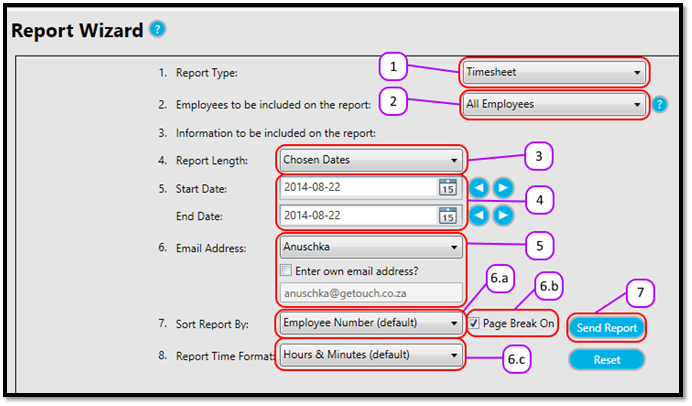
- Select the Timesheet report from the Report Type drop down. (see figure 1)
- Select the employees you want to include on the report from the Employees to be included on the report drop down. (see figure 1) The options for the Timesheet report are:
- All Employees
- Single Employee
- Selected Departments
- Selected Groups
- Selected Department and Group
- Selected Region
- Choose the Length for the report from the Report Length drop down. (see figure 1) The options for the Timesheet report are:
- Chosen dates
- Daily
- Bi-Weekly
- Monthly
- Enter the starting date for the report from the Start Date date box, and enter the ending date for the report from the End Date date box. (see figure 1)
- Select your Email Address from the Email Address drop down. Or click the Enter own email address checkbox and type the email address you want to send the report to in the Email Address text box. (see figure 1)
- Optional: These are optional extra’s that allow you to edit the format of the timesheet.
- Select how you want the report’s information to be sorted. (see figure 1) The options for the Employee Listing report are:
- Employee Number (default)
- Surname,
- Select how you want the report’s information to be sorted. (see figure 1) The options for the Employee Listing report are:
- Department, Surname
- Department, Group, Surname
- Department, Employee Number
- Department, Group, Employee Number
- Turn Page Breaks On or Off by clicking on the Page Break On/Off check box.
- Set the format of the times on the timesheet. The options are:
- Hours & Minutes (default) – e.g. 10:45
- Decimal – e.g. 10.75
- Click the Send Report (see figure 1)
Figure 1
Comments
0 comments
Please sign in to leave a comment.