
The Adjustments Screen is the place on Messenger where you can adjust your employee’s timesheets.
Example: If you get your employee’s timesheet and you see that he was absent on the 1st of September, but you know that he phoned in sick and brought a doctor’s letter on the 2nd of September, then you can add an adjustment for the 1st of September to give him the 8 hours he would have worked if he was not sick without adding false In and Out transactions for the employee.
In the adjustments screen you can:
- Search for an employee. (See Figure 1)
- Select the employee you want to work with. (See Figure 1)
- View some of the details of the selected employee including which shift the employee is on. (See Figure 1)
- Add an Adjustment for the selected employee. (See Figure 1)
- Delete the selected adjustment. (See Figure 1)
- Add Adjustments in bulk for multiple employees. (See Figure 1)
- Edit the selected adjustment. (See Figure 1)
- Filter the Adjustments for the selected employee by date range. (See Figure 1)
- View the Adjustments in this workspace. (See Figure 1)
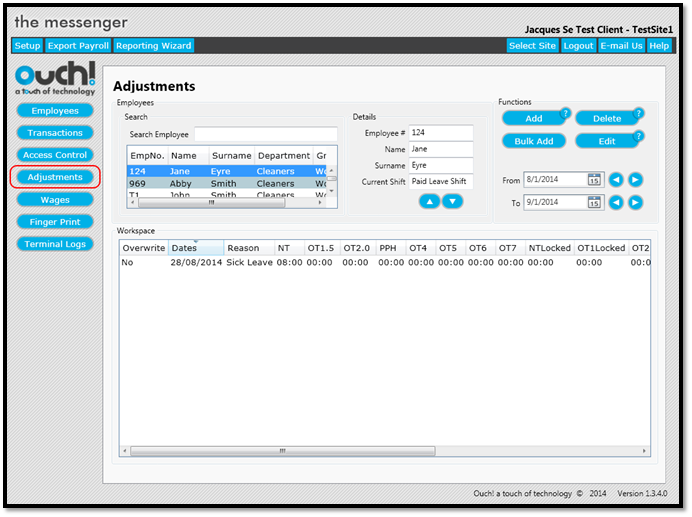
The adjustments screen can be accessed by clicking on Adjustments on the left hand side of Messenger. (See Figure 2)
Figure 1
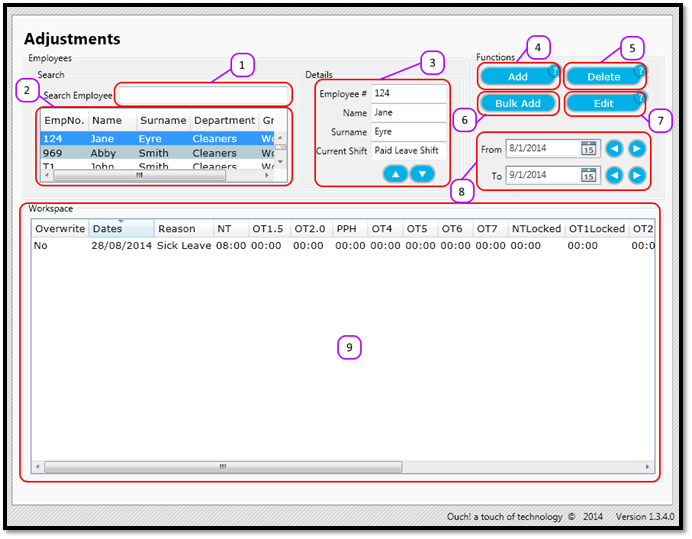
Figure 2
Comments
0 comments
Please sign in to leave a comment.