
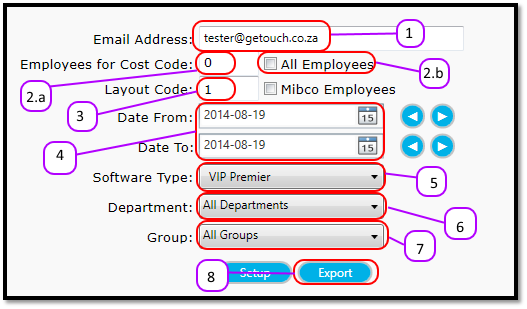
- Enter your email address in the Email Address text box. (See figure 1)
- Enter the cost code or check the All Employees (See figure 1)
- If you enter a cost code, then only the employees with that Cost Code will appear on the Export.
- If you check All Employees then All of your employees regardless of cost code will be on the Export.
- Enter the Layout Code (VIP needs this to know the order of the columns)
- Enter the Starting date for the export in the Date From date box, and enter the Ending date for the export in the Date To date box. (See figure 1)
- Select Software Type – VIP Premier. (see figure 1)
- If you only want the people in a certain department, then select the department from the Department drop down, otherwise leave it on All Departments. (see figure 1)
- If you only want the people in a certain group, then select the group from the Group drop down, otherwise leave it on All Groups. (see figure 1)
- Click Export. The export file will be sent to your email address. (see figure 1)
Figure 1
Comments
0 comments
Please sign in to leave a comment.