
VIP has multiple columns, but only allows 6 columns to be imported at a time. Layout codes are used to tell VIP which columns are being used in the import. The Layout codes need to correspond between Messenger and VIP in order for your timesheet data to be imported successfully.
Example:
|
VIP Column Numbers |
1 |
2 |
3 |
4 |
5 |
6 |
7 |
8 |
9 |
|
Corresponding Column Number in Messenger |
1 |
2 |
* |
3 |
4 |
5 |
6 |
7 |
8 |
|
|
|
|
|
|
|
|
|
|
|
|
Columns included in VIP Layout Code 1 |
1 |
2 |
|
4 |
5 |
6 |
7 |
|
|
|
Corresponding Messenger Columns |
1 |
2 |
|
3 |
4 |
5 |
6 |
|
|
|
|
|
|
|
|
|
|
|
|
|
|
Columns included in VIP Layout Code 2 |
|
|
|
|
|
|
|
8 |
9 |
|
Corresponding Messenger Columns |
|
|
|
|
|
|
|
7 |
8 |
|
|
|
|
|
|
|
|
|
|
|
*Column is used only by VIP, not Messenger
So when a VIP Premium export with Layout Code 1 is created on Messenger, then Columns 1 to 6 will be exported by Messenger. On the VIP side, these 6 columns will be imported as Column 1, 2, 4, 5, 6 and 7.
When a VIP Premium export with layout Code 2 is created on Messenger, then Columns 7 to 8 will be exported by Messenger. These columns will be imported on the VIP side as Column 8 and 9.
If no layout code has been setup, then Messenger will export the first 6 columns as layout code 1.
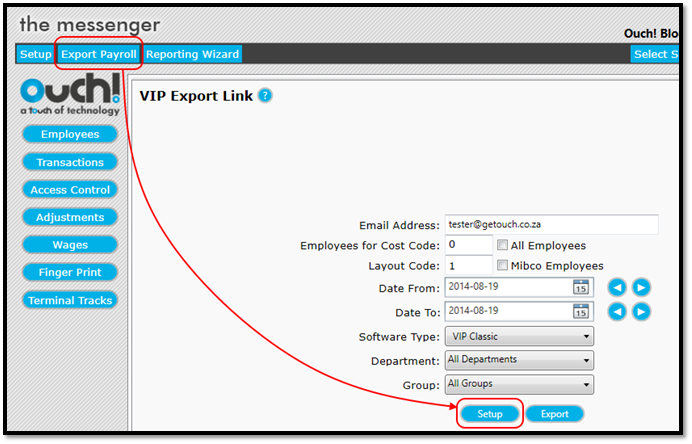
Layout codes are setup by going to the export tab and clicking on the Setup button. (See Figure 1)
Figure 1
Comments
0 comments
Please sign in to leave a comment.